Introduction
TSP Solver works with the Traveling Salesman Problem (TSP): search for a very short route that visits all points exactly once and returns to the start. It is useful for logistics, route planning, PCB drilling, CNC/laser workflows, robotics, and drone path planning (2D and 3D).
The app includes LKH, Robopol Refined, and a quality-focused hybrid method, and supports both straight-line (air) distance and road distance based on real road networks.
Úvod
TSP Solver pracuje s problémom obchodného cestujúceho (TSP): hľadá čo najkratšiu trasu, ktorá navštívi všetky body presne raz a vráti sa na začiatok. Hodí sa pre logistiku, plánovanie trás, vŕtanie DPS, CNC/laser, robotiku aj plánovanie trás pre drony (2D aj 3D).
Aplikácia obsahuje LKH, Robopol Refined a hybridnú metódu zameranú na kvalitu a podporuje výpočet vzdušnou čiarou aj cestné vzdialenosti podľa reálnej cestnej siete.
Quick start
- Choose distance type: Air (points) or Road (addresses).
- Add points by clicking on the canvas, or import points from a
.txtfile. - Select a method and speed/quality profile suitable for the job.
- Click Calculate to compute and draw the route.
- Export points / image / SVG or save the project as
.json.
Rýchly štart
- Zvoľ typ vzdialenosti: Air (body) alebo Road (adresy).
- Vytvor body kliknutím na plátno alebo importuj body z
.txtsúboru. - Vyber metódu a profil rýchlosti/kvality vhodný pre danú úlohu.
- Klikni Calculate – vypočíta a vykreslí trasu.
- Exportuj body/obrázok/SVG alebo ulož projekt ako
.json.
The workspace
The left sidebar contains project, dataset and system tools. The canvas occupies the centre; the right panel holds the route summary, algorithm selector, Calculate button and Route Details.
Pracovná plocha
Ľavý panel obsahuje nástroje projektu, dát a systému. V strede je plátno; pravý panel obsahuje súhrn trasy, výber algoritmu, tlačidlo Calculate a Route Details.
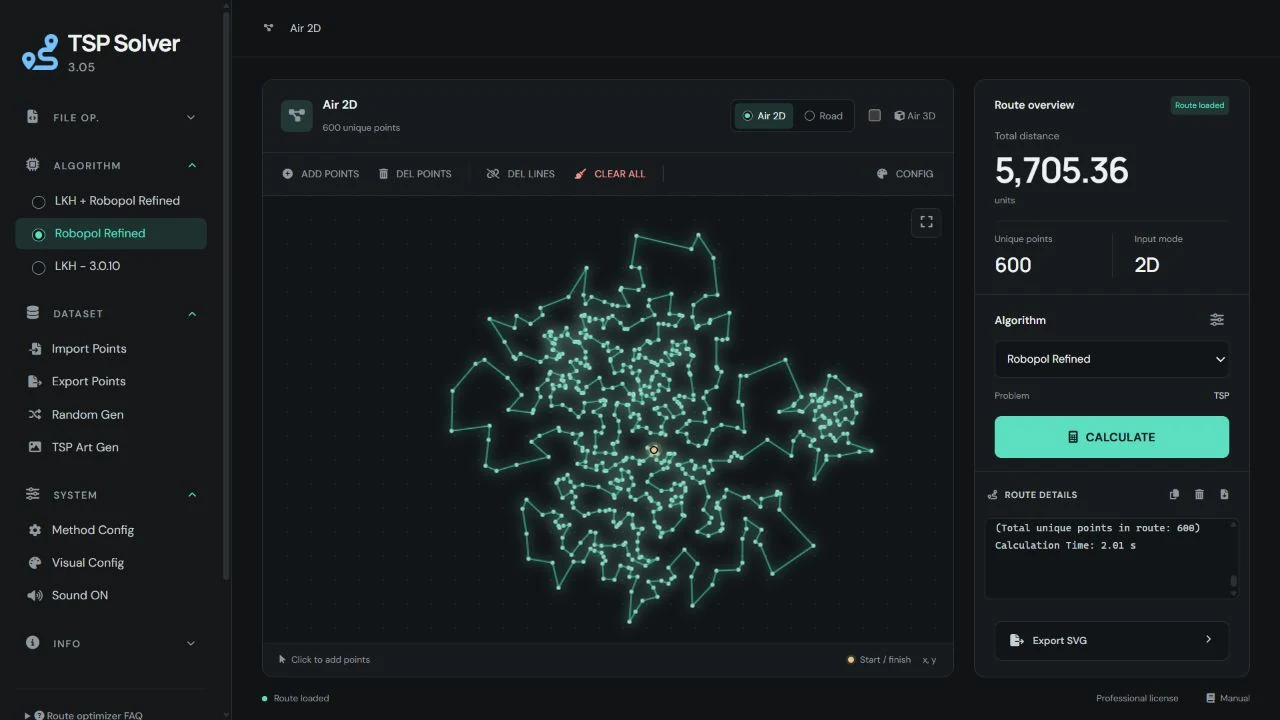
- Unique points: counts distinct coordinates, matching Route Details. Duplicate input records do not increase this count.
- Gold marker: identifies the first input point before calculation, then the actual route start/finish or mTSP depot.
- Route Details: contains coordinates, removed duplicates and calculation time, with Copy, Clear and Export controls.
- Unique points: počet jedinečných súradníc zhodný s Route Details. Duplicitné vstupné záznamy tento počet nezvyšujú.
- Zlatý bod: pred výpočtom označuje prvý vstupný bod, potom skutočný začiatok/koniec trasy alebo depot mTSP.
- Route Details: obsahuje súradnice, odstránené duplicity a čas výpočtu; výstup možno kopírovať, vymazať alebo exportovať.
Layout & fullscreen
The 3.05 workspace uses a compact sidebar, canvas and results panel. On a narrow screen the results move below the canvas and the navigation opens with the menu button.
- Click the expand icon in the upper-right corner of the canvas.
- The canvas fills the screen; the fullscreen menu provides access to the original tools.
- Use the fullscreen button again to return to the workspace.
For large datasets, use Visual Config → Appearance → Canvas → Skip Drawing. The calculation continues while point and route rendering is skipped.
Rozloženie a celá obrazovka
Verzia 3.05 používa kompaktný bočný panel, plátno a panel výsledkov. Na úzkej obrazovke sa výsledky presunú pod plátno a navigáciu otvoríš tlačidlom menu.
- Klikni na ikonu zväčšenia v pravom hornom rohu plátna.
- Plátno vyplní obrazovku; fullscreen menu sprístupní pôvodné nástroje.
- Opätovným kliknutím na tlačidlo celej obrazovky sa vrátiš do pracovného rozloženia.
Pri veľkých dátach použi Visual Config → Appearance → Canvas → Skip Drawing. Výpočet pokračuje, ale vykresľovanie bodov a trasy sa vynechá.
AIR 3D (x, y, z)
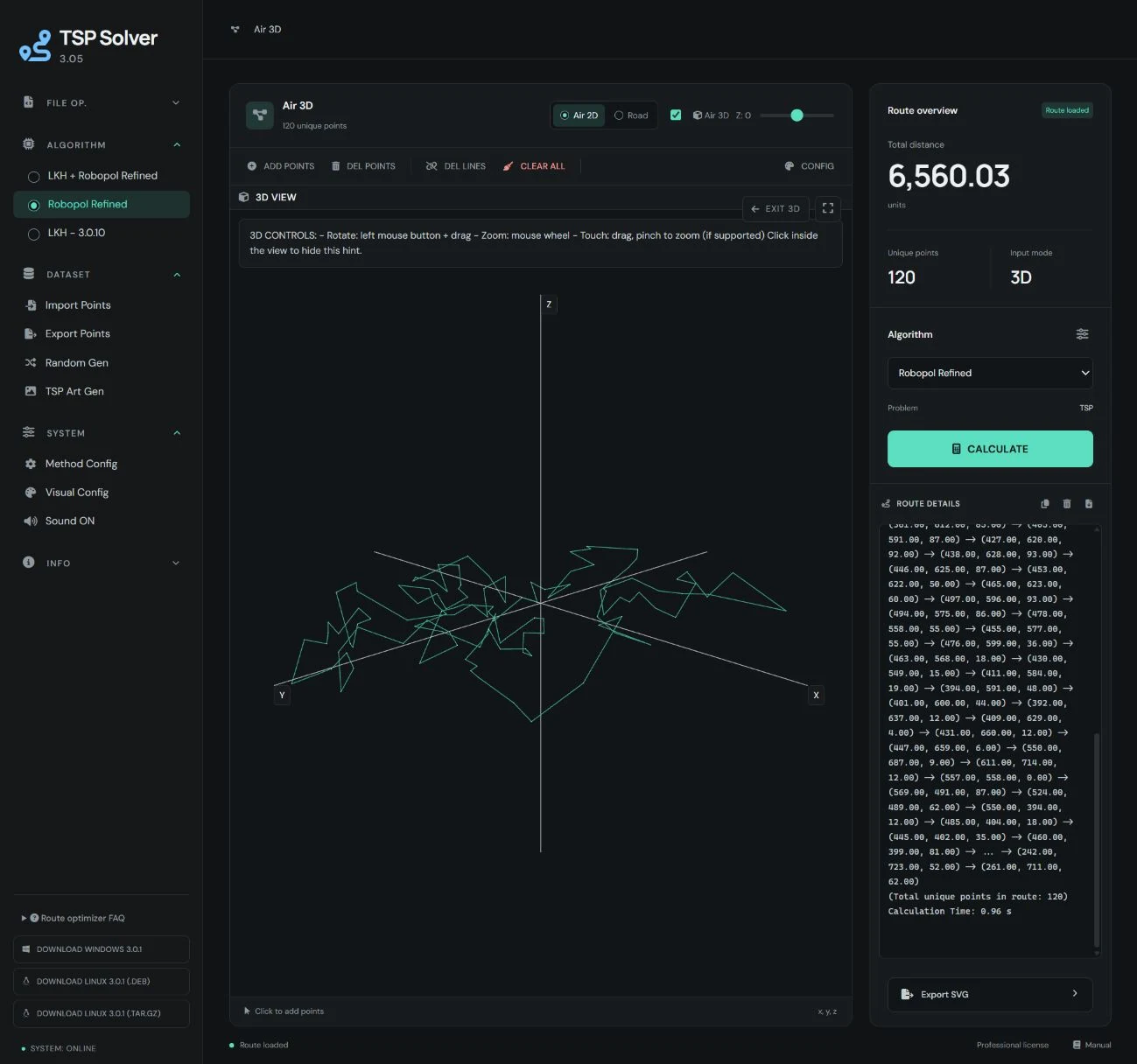
Enable Air 3D beside the distance selector. Points then include height z and the solver uses three-dimensional distances.
- Set the Z slider for points added manually; its range is −1000 to 1000.
- Import
x y zcoordinates, or use Random Gen with a constant Z or a uniform height range. - Calculate the route, then use Show 3D View to open the interactive view inside the canvas.
- Drag to rotate and use the wheel to zoom. Exit 3D returns to the 2D canvas; the checkbox controls whether calculations use 3D coordinates.
TXT import accepts 2D and 3D coordinates. Export includes Z when 3D mode is enabled or a point has non-zero Z. See Data import / export for delimiters and numbering.
AIR 3D (x, y, z)
Zapni Air 3D vedľa prepínača vzdialenosti. Body potom obsahujú výšku z a solver používa priestorové vzdialenosti.
- Pre ručne pridávané body nastav posuvník Z; rozsah je −1000 až 1000.
- Importuj súradnice
x y zalebo použi Random Gen s konštantnou výškou či rovnomerným výškovým rozsahom. - Vypočítaj trasu a cez Show 3D View otvor interaktívne zobrazenie v plátne.
- Ťahaním otáčaj a kolieskom približuj. Exit 3D vráti 2D plátno; zaškrtávacie políčko určuje, či výpočet používa 3D súradnice.
TXT import prijíma 2D aj 3D súradnice. Export pridá Z pri zapnutom 3D režime alebo nenulovej výške bodu. Oddeľovače a číslovanie vysvetľuje Import / export dát.
Algorithms
LKH‑3.0.10
An established high-quality option with support for AIR, ROAD, and multi-vehicle workflows.
Practical tip: For AIR routes, try different available
CANDIDATE_SET_TYPE values. LKH can return a different route for each one, and the best
choice depends on the point layout.
Distance type: EUC_2D / EUC_3D rounds each Euclidean edge distance to
whole units. EXACT_2D / EXACT_3D uses finer distance precision, so choose EXACT when an
accurate total distance is important.
LKH + Robopol Refined
A premium quality-focused method for demanding AIR routes. It prioritizes final route quality and can require more calculation time.
Robopol Refined
RoboPol's proprietary optimizer with Fast, Balanced, and Heavy profiles. Fast favors response time, Balanced is recommended for general work, and Heavy favors maximum route quality.
Algoritmy
LKH‑3.0.10
Overená metóda s vysokou kvalitou a podporou režimov AIR, ROAD aj multi-vehicle.
Praktický tip: Pri AIR trasách vyskúšaj rôzne dostupné hodnoty
CANDIDATE_SET_TYPE. LKH môže pre každú z nich vrátiť inú trasu a najlepšia voľba závisí
od rozloženia bodov.
Typ vzdialenosti: EUC_2D / EUC_3D zaokrúhľuje dĺžku každej euklidovskej
hrany na celé jednotky. EXACT_2D / EXACT_3D používa jemnejšiu presnosť vzdialeností, preto
zvoľ EXACT, keď je dôležitá presná celková vzdialenosť.
LKH + Robopol Refined
Prémiová metóda zameraná na kvalitu pre náročné AIR trasy. Uprednostňuje výslednú kvalitu trasy a môže vyžadovať dlhší čas výpočtu.
Robopol Refined
Vlastný optimalizátor RoboPol s profilmi Fast, Balanced a Heavy. Fast uprednostňuje rýchlosť, Balanced je odporúčaný na bežnú prácu a Heavy uprednostňuje maximálnu kvalitu trasy.
Performance
- Profiles: Fast prioritizes response time, Balanced provides the default trade-off, and Heavy prioritizes quality.
- Scaling: calculation time depends on point count, geometry, selected method, profile, and hardware.
- Quality: no single profile is best for every dataset; compare results when the route is business-critical.
- 3D support: 2D and 3D (x, y, z) with interactive visualization.
- Road distance: computes routes on real road networks, exportable to Google Maps.
Výkonnosť
- Profily: Fast uprednostňuje rýchlosť, Balanced ponúka predvolený kompromis a Heavy uprednostňuje kvalitu.
- Škálovanie: čas závisí od počtu bodov, geometrie, zvolenej metódy, profilu a hardvéru.
- Kvalita: žiadny profil nie je najlepší pre každý dataset; pri dôležitých trasách výsledky porovnaj.
- 3D podpora: 2D aj 3D (x, y, z) s interaktívnou vizualizáciou.
- Cestné vzdialenosti: trasy po reálnej cestnej sieti s exportom do Google Maps.
Settings (recommended)
Method selection
- Fast response: Robopol Refined with the Fast profile.
- General work: Robopol Refined with the Balanced profile.
- Maximum AIR quality: Heavy profile or LKH + Robopol Refined.
- ROAD or multi-vehicle: LKH‑3.0.10.
Profile guidance
Use the supplied profiles before changing individual values. They provide tested speed and quality levels without requiring manual tuning.
Advanced overrides are intended for experienced users. Increasing a value can increase runtime, CPU use, or memory and does not guarantee a better route on every dataset.
Nastavenia (odporúčania)
Výber metódy
- Rýchly výsledok: Robopol Refined s profilom Fast.
- Bežná práca: Robopol Refined s profilom Balanced.
- Maximálna AIR kvalita: profil Heavy alebo LKH + Robopol Refined.
- ROAD alebo multi-vehicle: LKH‑3.0.10.
Odporúčanie k profilom
Pred zmenou jednotlivých hodnôt použi pripravené profily. Poskytujú otestované úrovne rýchlosti a kvality bez potreby ručného ladenia.
Pokročilé úpravy sú určené skúseným používateľom. Zvýšenie hodnoty môže predĺžiť čas, zvýšiť využitie CPU alebo pamäte a negarantuje lepšiu trasu na každom datasete.
File operations
New Project
Resets to the initial state (clears canvas/output, keeps settings).
Save As
Saves the project as .json (air: tsp_air_data.json, road: tsp_road_data.json).
Open Project
Loads a saved .json project created by TSP Solver.
Import / Export Image
Import a background template and export the current visualization as an image.
Export SVG
Exports route + points as scalable vector graphics (.svg).
Súbory (File operations)
New Project
Reset na úvodný stav (vymaže plátno/výstup, ponechá nastavenia).
Save As
Uloží projekt ako .json (air: tsp_air_data.json, road: tsp_road_data.json).
Open Project
Načíta uložený .json projekt vytvorený v TSP Solver.
Import / Export Image
Import obrázka ako podklad a export aktuálnej vizualizácie do obrázka.
Export SVG
Export trasy + bodov do vektorového formátu (.svg).
Import / Export data
Import points
Accepted coordinate formats (AIR 2D/3D):
x y(2D) orx y z(3D), separators: space / comma / semicolonx, yorx, y, zx; yorx; y; zn) x y/n) x y z(numbered, delimiter))n: x y/n: x y z(numbered, delimiter:)n, x y/n, x y z(numbered, delimiter,)
Numbering is recognized only when it has an explicit delimiter (), :, ,).
This prevents breaking valid 3D files where the first coordinate is an integer.
The first row is highlighted before calculation. After calculation, the gold marker follows the actual route order. Repeated coordinates are counted once.
Decimals must use dot (.), not comma.
Export points
Exports route points to .txt. The exporter preserves your coordinate delimiter
(space/comma/semicolon) and numbering style when possible.
- If AIR 3D is enabled (or any point has non‑zero Z), export uses
x y z. - Otherwise export uses
x y.
Multi-vehicle (mTSP) TXT format
When a multi-vehicle route exists, TSP Solver exports a structured .txt file (for machines/tools)
with explicit sections. The format starts with a header and then contains POINTS and ROUTES.
# TSP_SOLVER_TXT 1# mode: airor# mode: road# depot: 1,# vehicles: k,# objective: MINSUM|MINMAX|MINMAX_SIZEPOINTSsection:id x y [z](AIR) orid lat lon "address"(ROAD)ROUTESsection:V <vehicle_id> cost=<cost> stops: id id id ...
IDs in the structured export are 1..n (by point order in the file). Routes reference these IDs.
Random points
Generates points using the selected distribution. Click Calculate afterwards to solve the route.
Import / Export dát
Import bodov
Podporované formáty súradníc (AIR 2D/3D):
x y(2D) alebox y z(3D), oddeľovače: medzera / čiarka / bodkočiarkax, yalebox, y, zx; yalebox; y; zn) x y/n) x y z(číslované, oddeľovač))n: x y/n: x y z(číslované, oddeľovač:)n, x y/n, x y z(číslované, oddeľovač,)
Číslovanie sa rozpozná iba vtedy, keď má explicitný oddeľovač (), :, ,).
Tým sa zabráni tomu, aby sa platný 3D súbor s celočíselným x mylne bral ako „poradové číslo“.
Prvý riadok je zvýraznený pred výpočtom. Po výpočte zlatý bod sleduje skutočné poradie trasy. Opakované súradnice sa započítajú len raz.
Desatinný oddeľovač musí byť bodka (.), nie čiarka.
Export bodov
Exportuje body trasy do .txt. Export sa snaží zachovať oddeľovač súradníc
(medzera/čiarka/bodkočiarka) aj štýl číslovania, keď je to možné.
- Ak je zapnuté AIR 3D (alebo má niektorý bod nenulové Z), exportuje
x y z. - Inak exportuje
x y.
TXT formát pre multi-vehicle (mTSP)
Keď existuje multi-vehicle trasa, TSP Solver exportuje štruktúrovaný .txt súbor (pre stroje/nástroje)
so sekciami. Formát začína hlavičkou a potom obsahuje POINTS a ROUTES.
# TSP_SOLVER_TXT 1# mode: airalebo# mode: road# depot: 1,# vehicles: k,# objective: MINSUM|MINMAX|MINMAX_SIZE- Sekcia
POINTS:id x y [z](AIR) aleboid lat lon "adresa"(ROAD) - Sekcia
ROUTES:V <vehicle_id> cost=<cost> stops: id id id ...
ID v štruktúrovanom exporte sú 1..n (podľa poradia bodov v súbore). Trasy referencujú tieto ID.
Náhodné body
Vygeneruje body podľa vybraného rozloženia. Trasu potom vypočítaš tlačidlom Calculate.
Appearance & algorithm settings
Vzhľad a nastavenia algoritmov
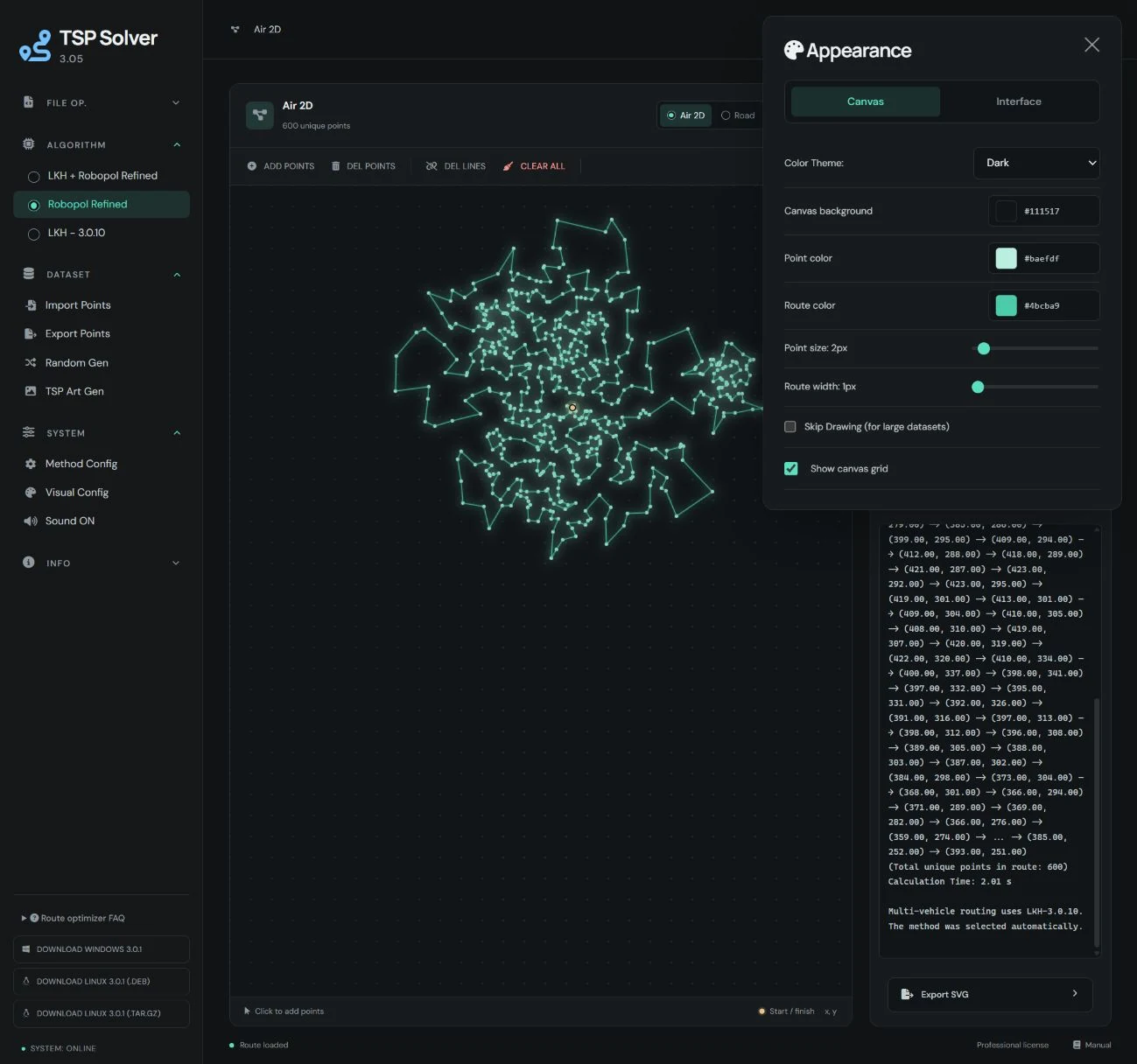
Open System → Visual Config or the canvas Config button. Appearance has two tabs: Canvas for theme, colours, point size, route width, Skip Drawing and the faint grid; Interface for page and panel colours.
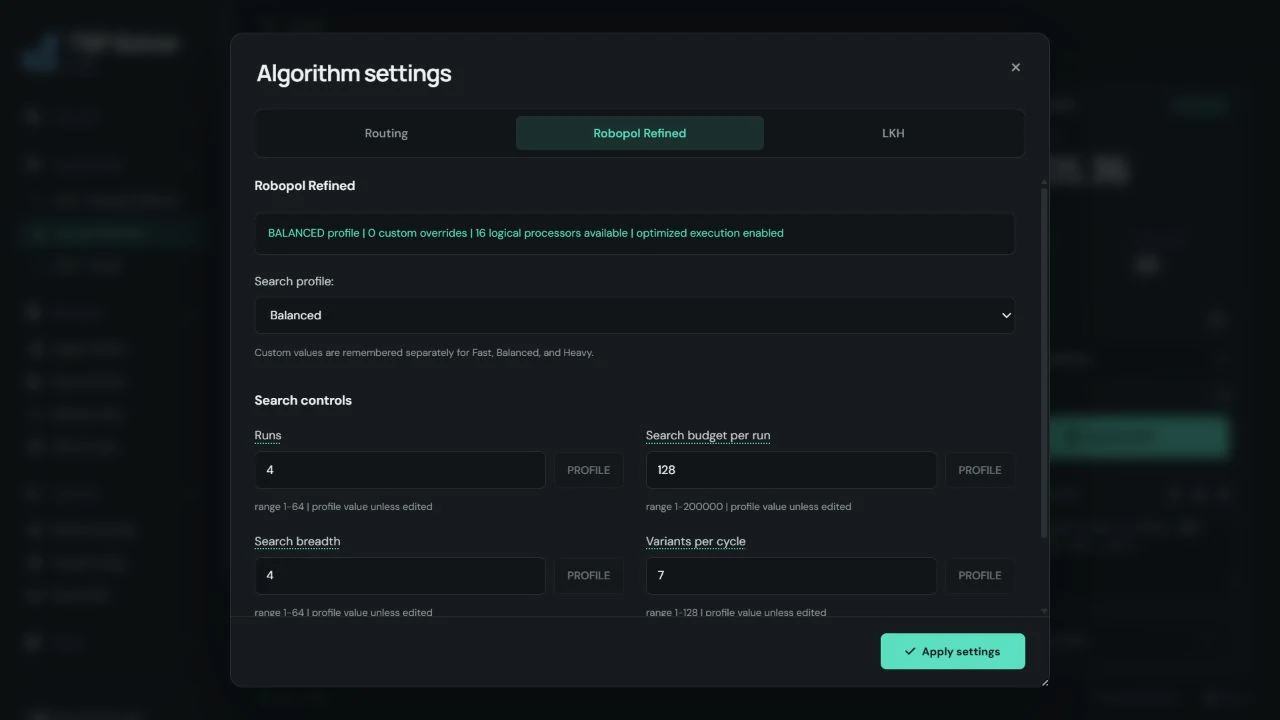
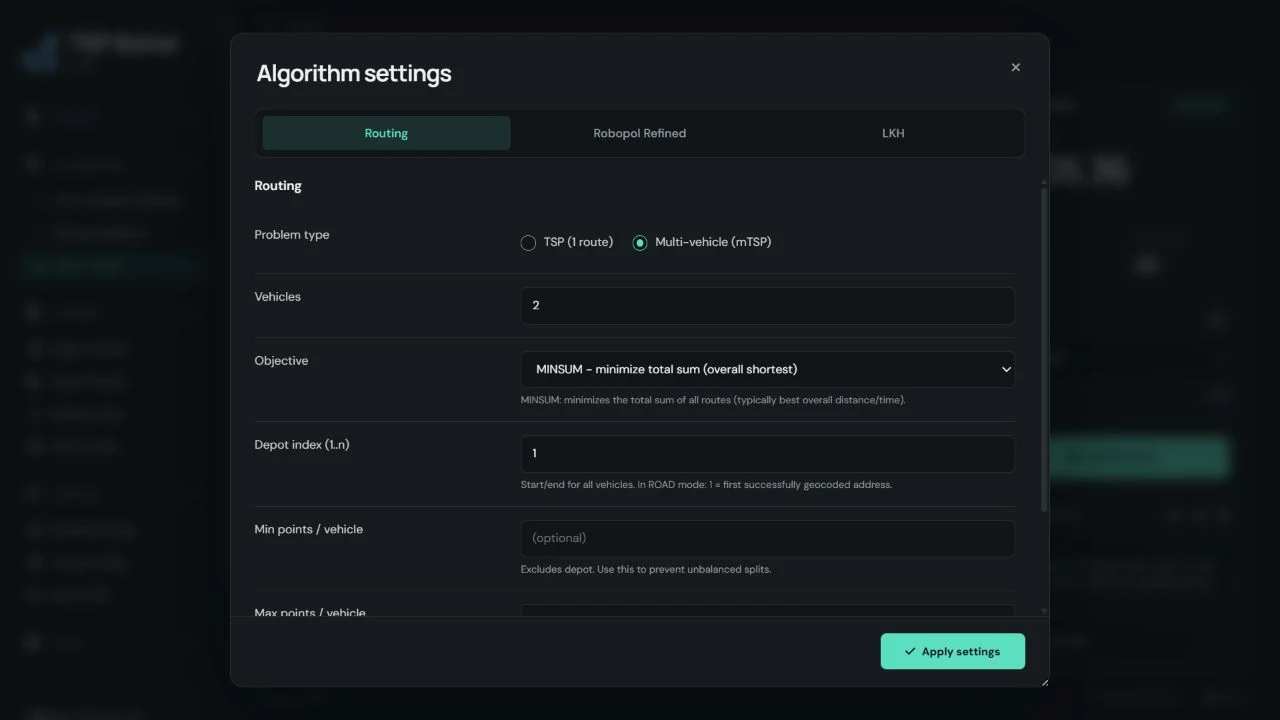
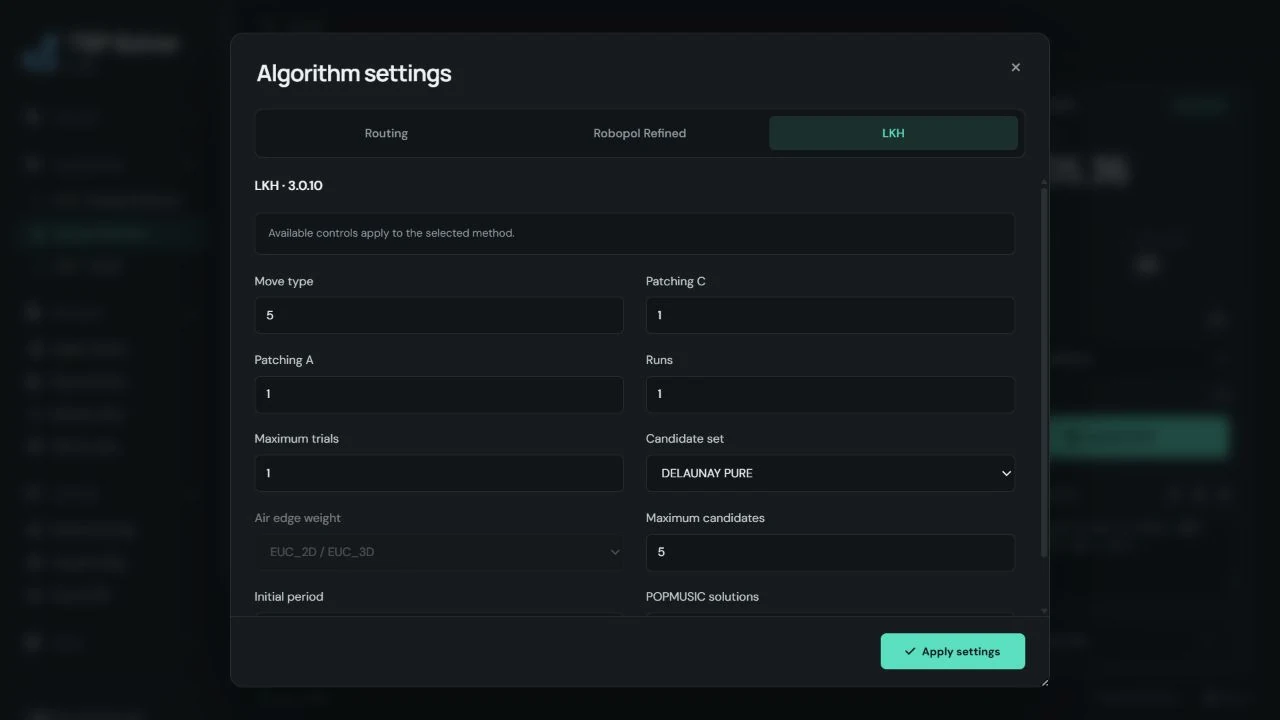
Open System → Method Config or the gear in the right panel. Algorithm settings has Routing, Robopol Refined and LKH tabs. Confirm algorithm changes with Apply settings.
Otvor System → Visual Config alebo tlačidlo Config nad plátnom. Appearance má dve karty: Canvas pre tému, farby, veľkosť bodov, šírku trasy, Skip Drawing a jemnú mriežku; Interface pre farby stránky a panelov.
Otvor System → Method Config alebo ozubené koliesko v pravom paneli. Algorithm settings obsahuje karty Routing, Robopol Refined a LKH. Zmeny algoritmu potvrď cez Apply settings.
Visual config
- Canvas colors: Background, Node, Link
- Sizes: Node size, Link width
- Skip Drawing (large datasets): disables rendering of points and route on the canvas
- Page colors (UI theme): Page BG, Sidebar, Panels, Accent, Accent Dark, Text, Borders, Inputs BG, etc.
- Reset Page Colors: restores default TSP Solver theme colors
Method config
Method Config provides speed, quality, and resource controls. Start with a supplied profile and change individual values only when a measured business case requires it.
Robopol Refined controls
Only predictable search-effort controls are exposed. Sensitive internal parameters are managed by the selected profile because their interactions are non-linear; tuning them independently can reduce useful optimization work or worsen route quality.
- Profile: loads a complete tested speed/quality preset.
- Runs: sets the number of independent optimization attempts; the best result is retained.
- Search budget per run: sets how much search work each attempt may perform.
- Search breadth: sets how many promising route alternatives are kept concurrently.
- Variants per cycle: sets how many alternatives are evaluated in each search cycle.
- Per-profile values: custom values are stored in the browser separately for Fast, Balanced, and Heavy and restored when returning to that profile.
- Reset current profile values: clears only the custom values of the selected profile and restores its built-in values.
LKH Multi-vehicle (mTSP) settings
TSP Solver supports multi-vehicle routing (mTSP) via LKH-3.0.10 from the Method Config panel. It is intended mainly for AIR 2D and ROAD workflows. Use AIR 3D (x,y,z) carefully and test smaller jobs before large runs.
- Problem type: choose TSP (1 route) or Multi-vehicle (mTSP).
- Vehicles (
vehicles): number of vehicles/salesmen (routes) to split the tour into. - Objective (
mtsp_objective):MINSUM: minimize total sum of all routes (best overall distance/time).MINMAX: minimize the longest single route (fairness by distance/time).MINMAX_SIZE: balance workload by minimizing the maximum number of stops per vehicle (not a direct distance objective).
- Depot index (1..n) (
depot_index): start/end node for all routes (1 = first point).
ROAD note: in Road mode this index refers to the order of successfully geocoded addresses (1 = first). Failed address lines are skipped. - Min points / vehicle (
mtsp_min_size): minimum number of stops per vehicle (excludes depot). Use to prevent 1-vs-99 splits. - Max points / vehicle (
mtsp_max_size): maximum number of stops per vehicle (excludes depot). Use to cap workload. - Road optimize by (
road_objective): choose Distance (km) or Time (sec) for ROAD mode.
LKH-3.0.10 advanced settings
These are expert controls. Keep the supplied defaults for normal work; the application automatically disables or manages options that do not apply to the selected method.
- RUNS and MAX_TRIALS: increase calculation effort and usually increase runtime.
- Other expert options: leave unchanged unless a validated benchmark or support recommendation requires an override.
For per-vehicle TXT output, see the structured mTSP format in Data import / export.
Visual config
- Farby plátna: Background, Node, Link
- Veľkosti: Node size, Link width
- Skip Drawing (veľké datasety): vypne renderovanie bodov a trasy na plátne
- Farby stránky (UI téma): Page BG, Sidebar, Panels, Accent, Accent Dark, Text, Borders, Inputs BG, atď.
- Reset Page Colors: obnoví defaultné TSP Solver farby
Method config
Method Config poskytuje nastavenia rýchlosti, kvality a využitia zdrojov. Začni pripraveným profilom a jednotlivé hodnoty meň iba vtedy, keď to vyžaduje overený praktický prípad.
Ovládanie Robopol Refined
Prístupné sú iba predvídateľné voľby náročnosti hľadania. Citlivé interné parametre spravuje zvolený profil, pretože ich vzájomné pôsobenie nie je lineárne; samostatné ladenie môže obmedziť užitočnú optimalizačnú prácu alebo zhoršiť kvalitu trasy.
- Profil: načíta kompletné otestované nastavenie rýchlosti a kvality.
- Runs: určuje počet nezávislých optimalizačných pokusov; zachová sa najlepší výsledok.
- Search budget per run: určuje množstvo práce pre každý optimalizačný pokus.
- Search breadth: určuje počet perspektívnych alternatív trasy udržiavaných súčasne.
- Variants per cycle: určuje počet alternatív vyhodnotených v jednom cykle hľadania.
- Hodnoty podľa profilu: vlastné hodnoty sa v prehliadači ukladajú osobitne pre Fast, Balanced a Heavy a po návrate k profilu sa obnovia.
- Reset current profile values: vymaže iba vlastné hodnoty zvoleného profilu a obnoví jeho vstavané hodnoty.
LKH Multi-vehicle (mTSP) nastavenia
TSP Solver podporuje multi-vehicle routing (mTSP) cez LKH-3.0.10 v Method Config. Je to určené hlavne pre AIR 2D a ROAD workflow. Pri AIR 3D (x,y,z) najprv otestuj menšie úlohy pred veľkými výpočtami.
- Problem type: zvoľ TSP (1 route) alebo Multi-vehicle (mTSP).
- Vehicles (
vehicles): počet áut/salesmen (koľko trás sa má vytvoriť). - Objective (
mtsp_objective):MINSUM: minimalizuje súčet všetkých trás (najlepšie celkovo).MINMAX: minimalizuje najdlhšiu trasu (férovosť podľa dĺžky/času).MINMAX_SIZE: vyrovnáva workload podľa počtu zastávok (nie je to priamo cieľ na dĺžku).
- Depot index (1..n) (
depot_index): štart/cieľ pre všetky trasy (1 = prvý bod).
ROAD poznámka: v Road režime je to poradie úspešne geokódovaných adries (1 = prvá). Neúspešné riadky sa preskočia. - Min points / vehicle (
mtsp_min_size): minimum bodov na auto (bez depa). - Max points / vehicle (
mtsp_max_size): maximum bodov na auto (bez depa). - Road optimize by (
road_objective): v ROAD režime zvoľ Distance (km) alebo Time (sec).
LKH-3.0.10 advanced nastavenia
Ide o expertné voľby. Pri bežnej práci ponechaj pripravené hodnoty; aplikácia automaticky vypne alebo spravuje voľby, ktoré sa na zvolenú metódu nevzťahujú.
- RUNS a MAX_TRIALS: zvyšujú náročnosť výpočtu a zvyčajne predlžujú čas.
- Ostatné expertné voľby: nemeň, pokiaľ úpravu nevyžaduje overený benchmark alebo odporúčanie podpory.
Actions: Create / Delete / Calculate
Add points
Click on the canvas to add points. The first input point is highlighted; after calculation the marker follows the actual route start/end.
Delete points
Enable delete mode and click a point to remove it.
Remove lines
Clears the currently drawn route connections.
Clear all
Removes all points, routes and imported background images.
Calculate
Computes the route for the selected method. Requires at least 2 unique points.
Akcie: Create / Delete / Calculate
Add points
Kliknutím na plátno pridáš body. Prvý vstupný bod je zvýraznený; po výpočte značka sleduje skutočný začiatok/koniec trasy.
Delete points
Zapni delete režim a klikni na bod, ktorý chceš odstrániť.
Remove lines
Vymaže aktuálne vykreslené spojenia trasy.
Clear all
Odstráni všetky body, trasy aj importované obrázky na pozadí.
Calculate
Vypočíta trasu podľa zvolenej metódy. Potrebuje aspoň 2 unikátne body.
TSP Art
Turn an image into a continuous route. The screenshots below were supplied by the author and show the complete 3.05 interface, including the selected algorithm and result.
- Open Dataset → TSP Art Gen, select an image and enter the number of points.
- For a quick first preview, start with a few thousand points. Increasing the point count adds detail and increases conversion and calculation time.
- Select LKH-3.0.10. In Method Config → LKH, choose DELAUNAY, Runs = 1 and Maximum trials = 1. Move type = 3 and both patching values at 0 reduce search effort further.
- Click Apply settings, then Calculate.
- Use Appearance → Canvas to adjust the background, point and route colours. Export the image, points or SVG as required.
The examples use 50,000–100,000 points for detail. They are illustrations, not a runtime guarantee for other computers or datasets.
TSP Art
Preveď obrázok na súvislú trasu. Zábery nižšie dodal autor a ukazujú celé rozhranie 3.05 vrátane zvoleného algoritmu a výsledku.
- Otvor Dataset → TSP Art Gen, vyber obrázok a zadaj počet bodov.
- Pre rýchly prvý náhľad začni niekoľkými tisíckami bodov. Vyšší počet pridá detaily a predĺži konverziu aj výpočet.
- Vyber LKH-3.0.10. V Method Config → LKH zvoľ DELAUNAY, Runs = 1 a Maximum trials = 1. Move type = 3 a obe hodnoty patchingu na 0 ďalej znížia náročnosť hľadania.
- Klikni Apply settings a potom Calculate.
- Cez Appearance → Canvas uprav farby pozadia, bodov a trasy. Podľa potreby exportuj obrázok, body alebo SVG.
Ukážky používajú 50 000–100 000 bodov pre jemné detaily. Ilustrujú výsledok; negarantujú rovnaký čas na inom počítači alebo dátach.
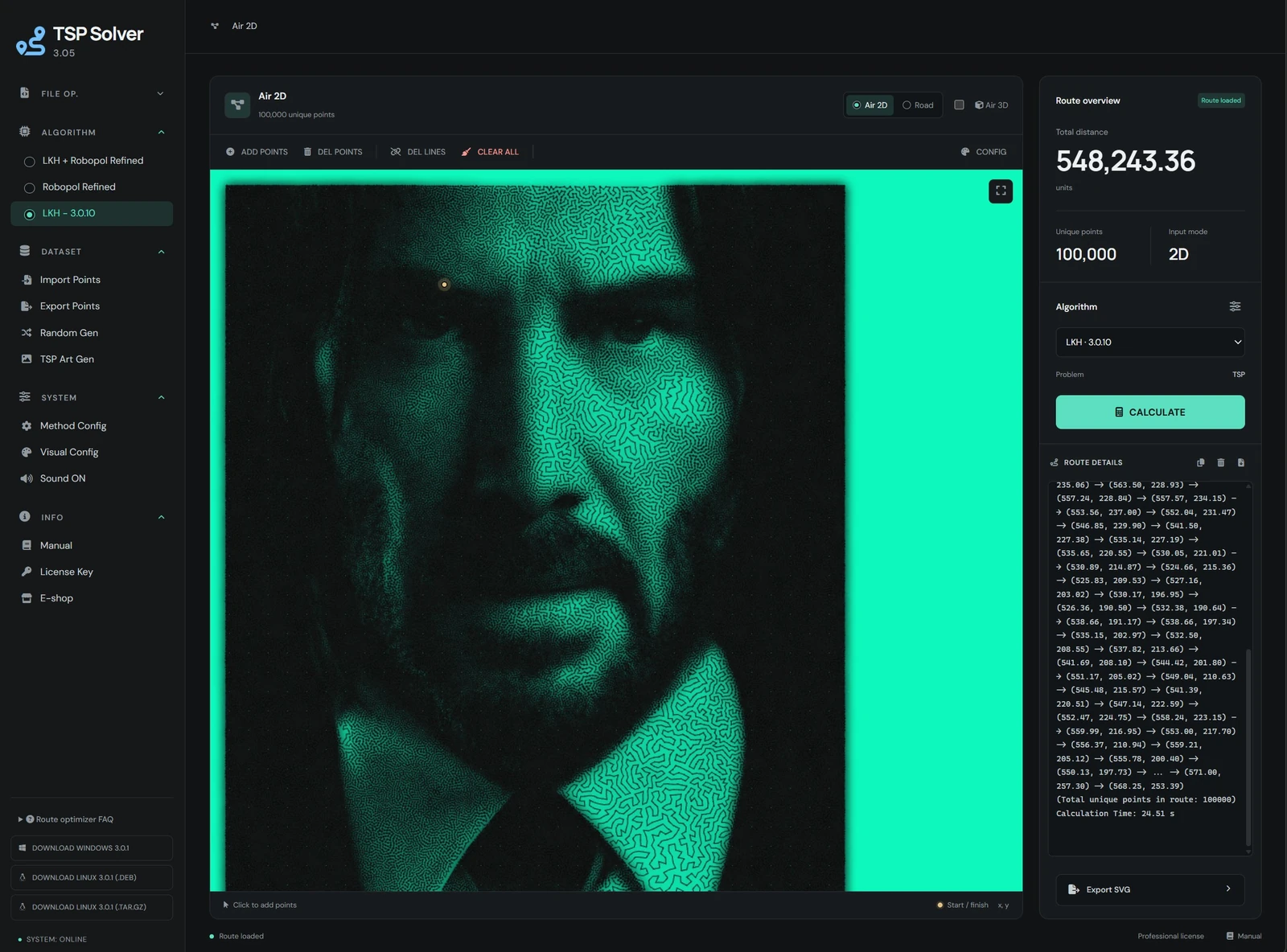
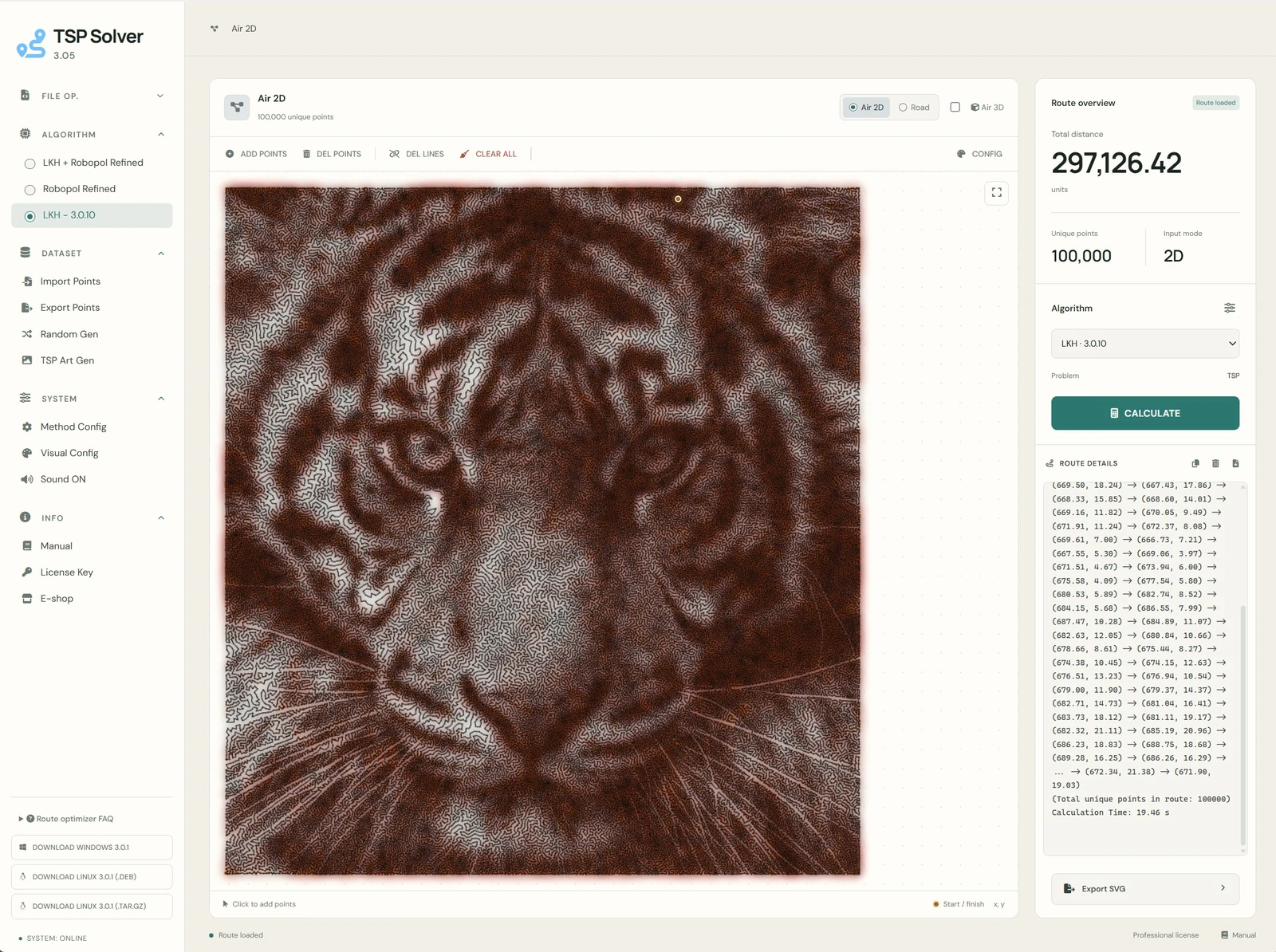
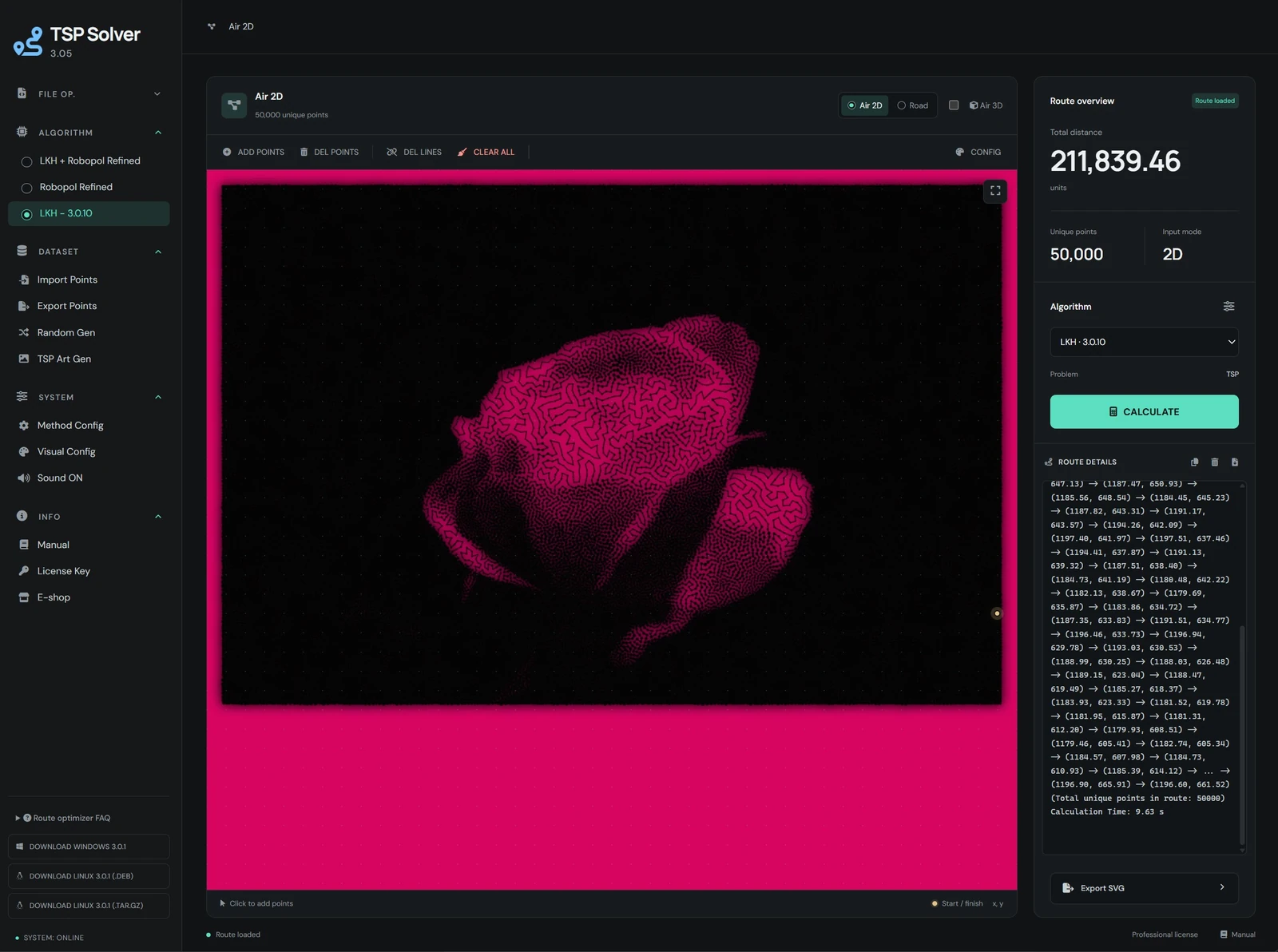
Source motifs:Zdrojové motívy: John Wick · WildCats Conservation Alliance · Liam Nguyen / Unsplash
Examples & screenshot reference
Points on an image
- Choose File Op. → Import Image.
- Add points to the template, choose an algorithm and Calculate.
- Export the image, points or SVG, and use Save As to keep the project.
Coordinates from TXT
- Prepare coordinates using a supported delimiter.
- Choose Dataset → Import Points, then Calculate.
- Compare Unique points with Route Details, then export the result.
Each image below shows the full 3.05 application window. Click to open it; use 1:1 for the original resolution.
Príklady a obrazový prehľad
Body na obrázku
- Zvoľ File Op. → Import Image.
- Pridaj body do podkladu, vyber algoritmus a klikni Calculate.
- Exportuj obrázok, body alebo SVG a cez Save As ulož projekt.
Súradnice z TXT
- Priprav súradnice s podporovaným oddeľovačom.
- Zvoľ Dataset → Import Points a potom Calculate.
- Porovnaj Unique points s Route Details a exportuj výsledok.
Každý obrázok ukazuje celé okno aplikácie 3.05. Kliknutím ho otvoríš; tlačidlo 1:1 zobrazí pôvodné rozlíšenie.
Road distance (maps)
Road mode calculates routes on real road networks (geocoding + routing).
You can also enable Multi-vehicle (mTSP) for Road mode via Method Config → Routing (vehicles, objective, depot, min/max stops). AIR 2D is supported too; AIR 3D should be verified on smaller jobs before larger runs.
depot_index is the 1-based order of successfully geocoded addresses in your list (1 = first).
Address lines that fail geocoding are skipped (they do not count into the index).
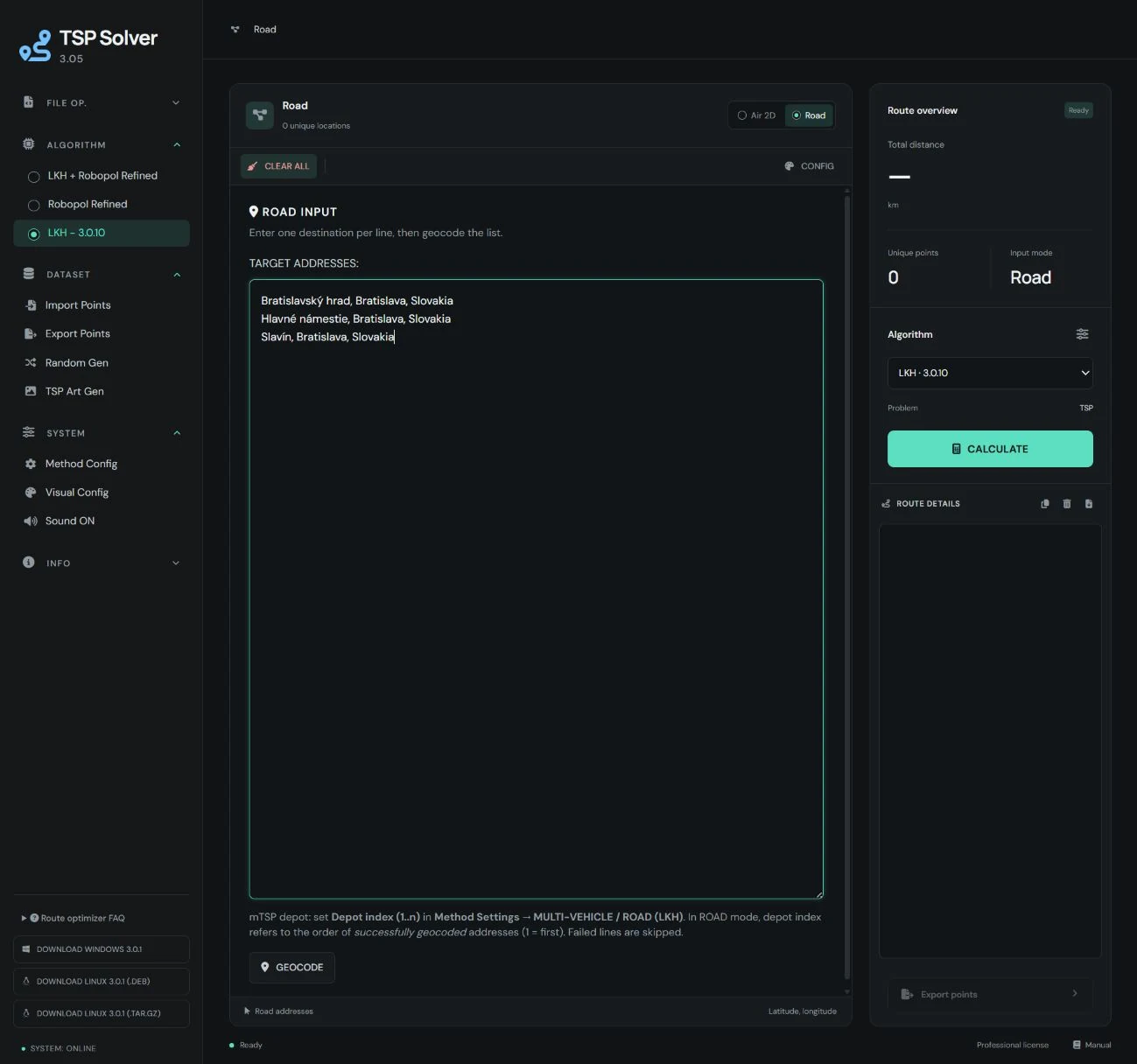
- Select Road.
- Enter addresses (one per line).
- Click Geocode.
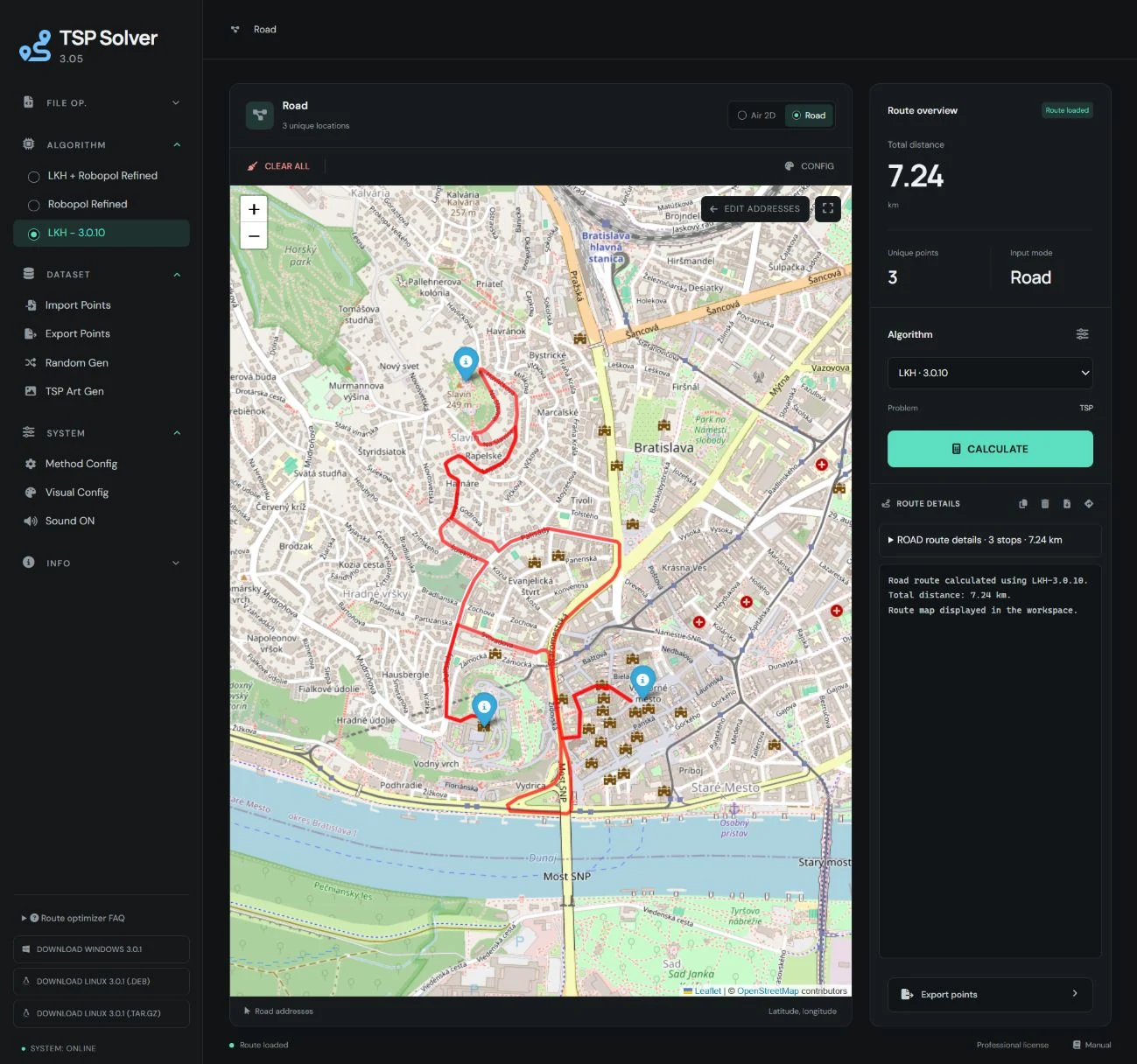
- Click Calculate to compute the route.
- Use Show Map to open an interactive preview.
- Use GOOGLE MAPS export to open the route in Google Maps (navigation / send to phone).
Cestné vzdialenosti (mapy)
Road režim počíta trasu po reálnej cestnej sieti (geokódovanie + routovanie).
Aj v Road režime vieš zapnúť Multi-vehicle (mTSP) cez Method Config → Routing (vehicles, objective, depot, min/max stops). AIR 2D je podporované tiež; AIR 3D si najprv over na menších úlohách.
depot_index je 1-based poradie úspešne geokódovaných adries v zozname (1 = prvá).
Riadky, ktoré sa negeokódujú, sa preskočia (nezapočítajú sa do indexu).
- Zvoľ Road.
- Zadaj adresy (1 adresa = 1 riadok).
- Klikni Geocode.
- Klikni Calculate – vypočíta trasu.
- Použi Show Map na interaktívny náhľad trasy.
- Použi GOOGLE MAPS export – otvorí trasu v Google Maps (navigácia / odoslať do mobilu).
License / editions
Use Info → License Key to activate purchased features. Editions typically differ by point limits, import/export permissions, and road‑route capabilities.
- Demo: limited points/features (intended for evaluation).
- Basic: suitable for smaller projects and travel use cases.
- Professional: full feature set with expanded limits; practical scale depends on hardware, memory, and selected mode.
Licencia / edície
Funkcia Info → License Key aktivuje zakúpené funkcie. Edície sa typicky líšia limitmi bodov, možnosťami import/export a cestnými trasami.
- Demo: obmedzené body/funkcie (na vyskúšanie).
- Basic: vhodné pre menšie projekty a cestovanie.
- Professional: plné funkcie s rozšírenými limitmi; praktický rozsah závisí od hardvéru, pamäte a zvoleného režimu.
Browser requirements
A modern browser, an internet connection and WebGL for the 3D viewer. Calculation runs on the server; no desktop solver installation is required.
Požiadavky na prehliadač
Moderný prehliadač, internetové pripojenie a WebGL pre 3D zobrazenie. Výpočet beží na serveri; inštalácia desktopového solvera nie je potrebná.
Notes & tips
- Use complete addresses for better geocoding accuracy (street, number, postal code, city, country).
- For large AIR datasets, start with the Robopol Refined Fast profile and enable Skip Drawing when needed.
- Export SVG for vector editing and clean scaling (Inkscape/Illustrator).
- Decimals must use dot (
.), not comma.
Poznámky a tipy
- Používaj kompletné adresy pre lepšie geokódovanie (ulica, číslo, PSČ, mesto, krajina).
- Pri veľkých AIR datasetoch začni profilom Robopol Refined Fast a podľa potreby zapni Skip Drawing.
- Export SVG je ideálny na ďalšie spracovanie (Inkscape/Illustrator).
- Desatinný oddeľovač je bodka (
.), nie čiarka.